
Before you start your draw request, you should make sure you know what documents are required by your lender. To check this, enter your project and click on the Policies tab. This will show you all of your Lender's submission requirements. 
Once you start your draw request you'll know what documents you may be prompted for including (if applicable) :
- Invoices
- Lien waivers
- Proof of Payment / Receipts
- Other required documents (Permits, Reports etc.)
You can also upload other documents associated to the Project outside of the Draw Process. This is done on the Documents tab of the Project page. The Upload process is quick and easy to go through. Let's walk through the process together.
- On the Project Page, click the Documents tab

- Click on the Project tab
- Click Upload doc(s)
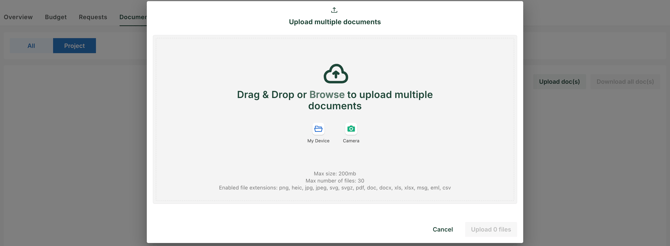
- Choose how you'd like to load the Document/s
- My Device will allow you to browser your device for the file/s to upload
- Camera allows you to use your device's built in Camera to take a picture/video to upload
- Drag & Drop allows you to locate the document/s on your device and drag the file icon/s to the window to drop and upload
- Set the Document Type, Line Item, and Comment for the Document
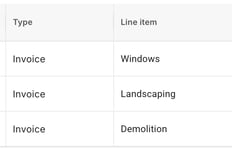
- If uploading more than one, you can choose to apply the same Document Type and Line Item to all files being uploaded at the top of the window
- Comment's are only available to each individual file - line item and Comment are optional.
- If you need to remove one of the files being uploaded, click the Trash Can icon to the right of the line item
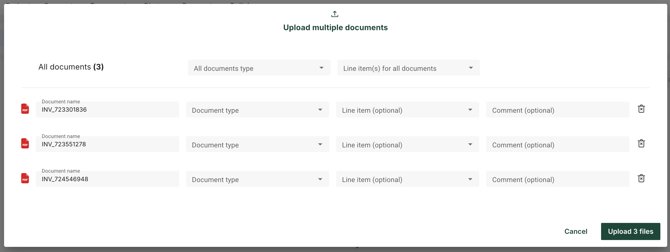
- Click Upload file to finish