
The Draw Request process is easy to go through, but involves multiple steps and screens. Let's walk through the process together.
- Click the Add request button at the top right of the screen
- In the Popup, check Draw Request
(also check Change request if you wish to reallocate budget during the draw)

You will be taken to the Policies Page. These are the requirements set by your Lender that must be fulfilled before you are able to Submit the Draw. There will always be 3 default policies in addition to any requirements from the Lender:
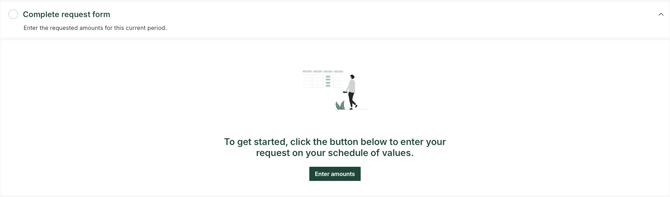
- Enter Amounts
These will be against individual line items in the Budget
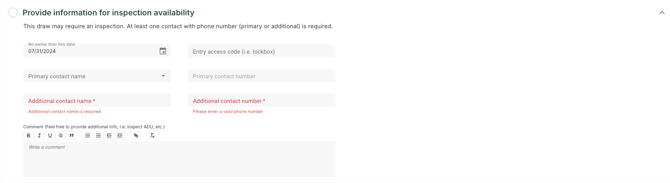
- Provide Inspection Availability
Days and times you be available for the inspection - as well as any critical details for the inspector such as Lockbox Codes
- Confirm the Completion Date
This will detail the targeted completion date for the Project - amend if that target date has shifted

Other Policy requirements from your Lender may include:
- Uploading supporting documents
- Invoices
- Proof of payment
- Lien Waivers
- Other
- Checking off that a task was completed
- Agreeing to an Attestation Statement. Check off that you have read and understand what is outlined in the text.
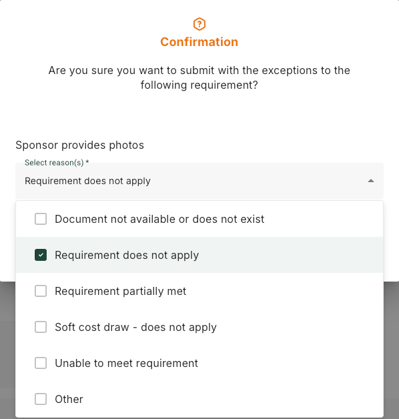
Before you can proceed, you must complete all policy requirements (you may wish to skip them if they do not apply, but you MUST provide a reason from a dropdown list or enter one in a text field.
Example:
When done, click Next to proceed to review the Draw Request. You may choose to return to the Submission Screen if additional changes are needed, or you may choose to click Submit to finish.
Conratulations - you have completed your Draw Request. You'll see both an onscreen popup, as well as an email notification. Please allow some time for the Lender to receive and process the request. Next steps will involve inspection of the Project and what the Draw is associated to.
If you'd like to learn how to submit a Lump Sum Draw, please check out our video on "What is a Lump Sum Draw Submission."